

As April draws to a close and the weather warms up, the most headache-inducing time for international students arrives: finals.
Besides endless papers, there are also never-ending presentations. What's worse, a simple PowerPoint sometimes can't tackle increasingly complex academic tasks.

When you can't rely on unhelpful teammates, you need these powerful helpers. Today, we've compiled a series of treasure trove websites and practical tips to help you make your presentations twice as effective with half the effort!
PPT Template Resources
Slideshare
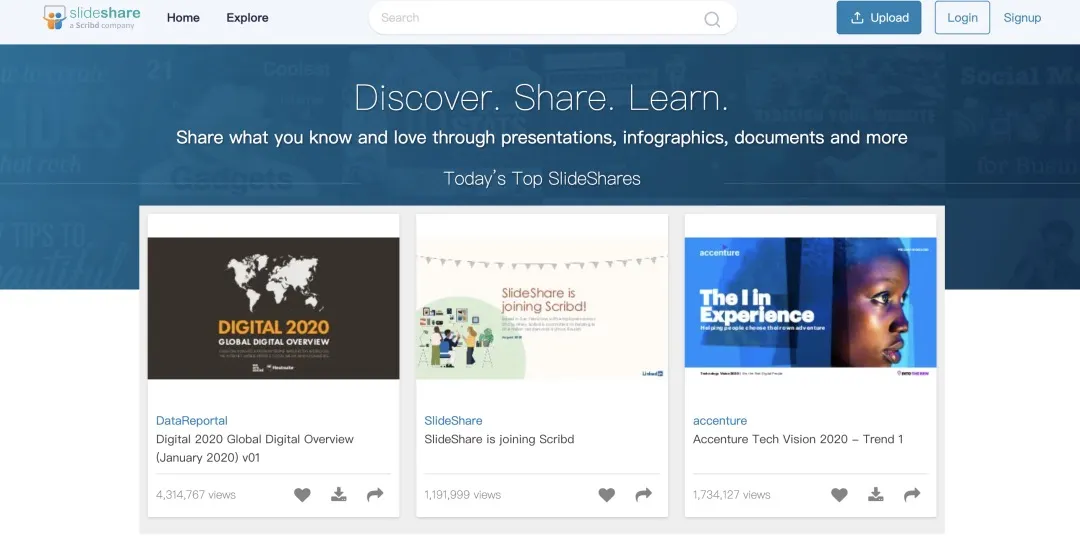
Slideshare is an absolute treasure of a template site! It features many presentations by internationally renowned companies, and these big-name companies' PPTs are actually quite sophisticated. Directly imitating their templates for your presentation will definitely give you bonus points!
Canva
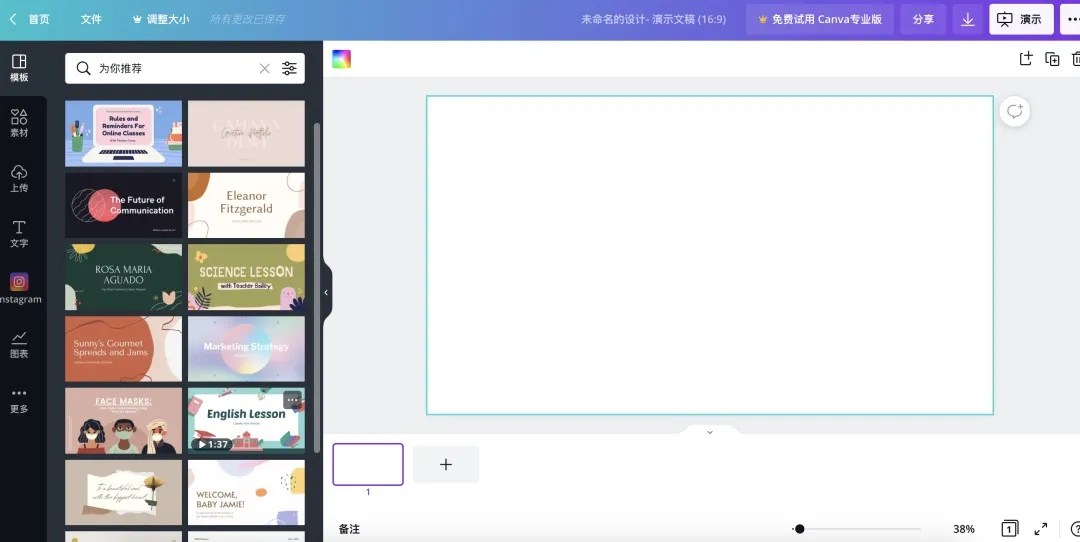
Many students have definitely used this site—it's especially convenient for designing posters. The PPT templates here are also very exquisite, with a wide variety, and most are free.
Slidego
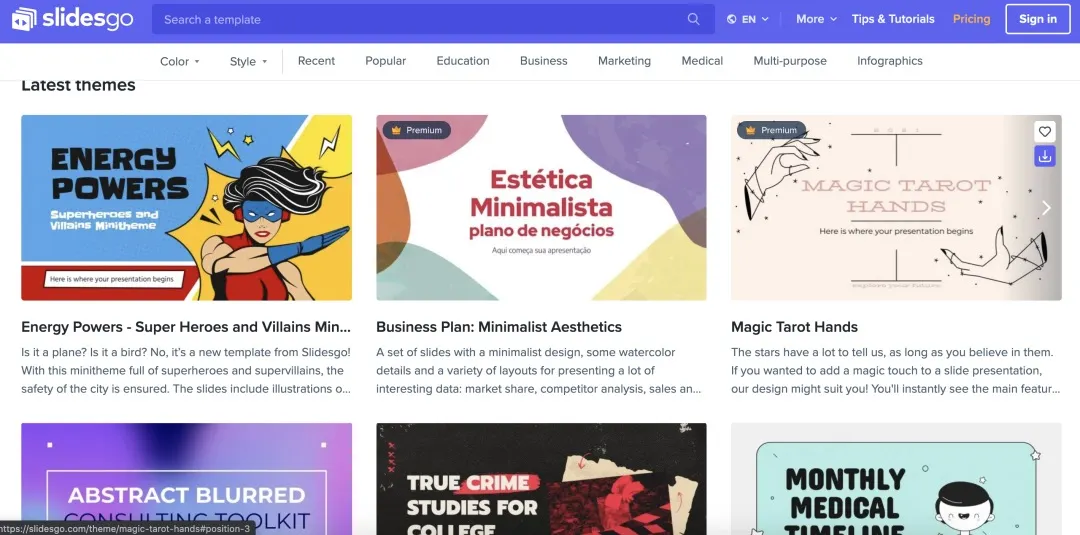
This is a site dedicated to providing PPT templates, very diverse, with all styles available, suitable for everyone.
Justfreeslide
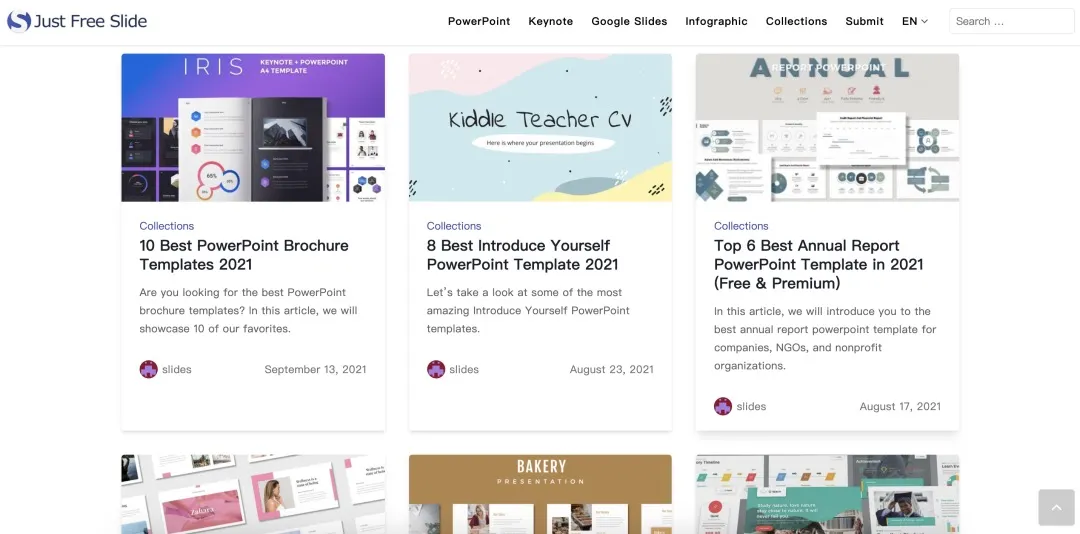
The design and color schemes of the PPT templates on this site are quite sophisticated, the kind of design that you won't forget after a single glance.
University Official Websites
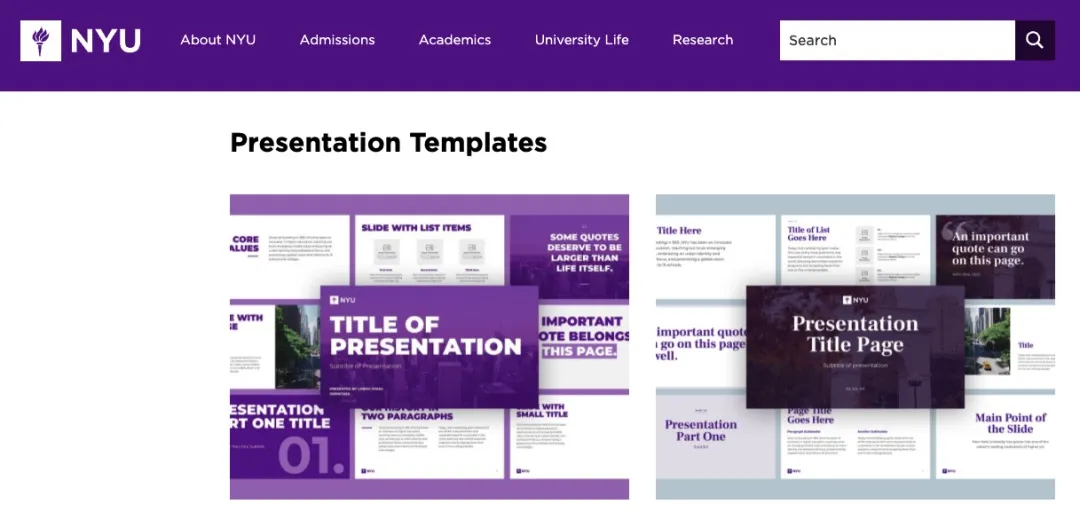
Different university official websites usually provide PPT templates with official color schemes and settings. Using your own university's PPT template is a sure bet—safe and familiar! Referring to other universities' PPTs will surely provide plenty of inspiration.
Presentation Charts & Graphs
For business or social science students, there's no escaping the need for data organization and producing visual reports. Below we recommend several websites that can help you create clear and beautiful charts:
Echarts
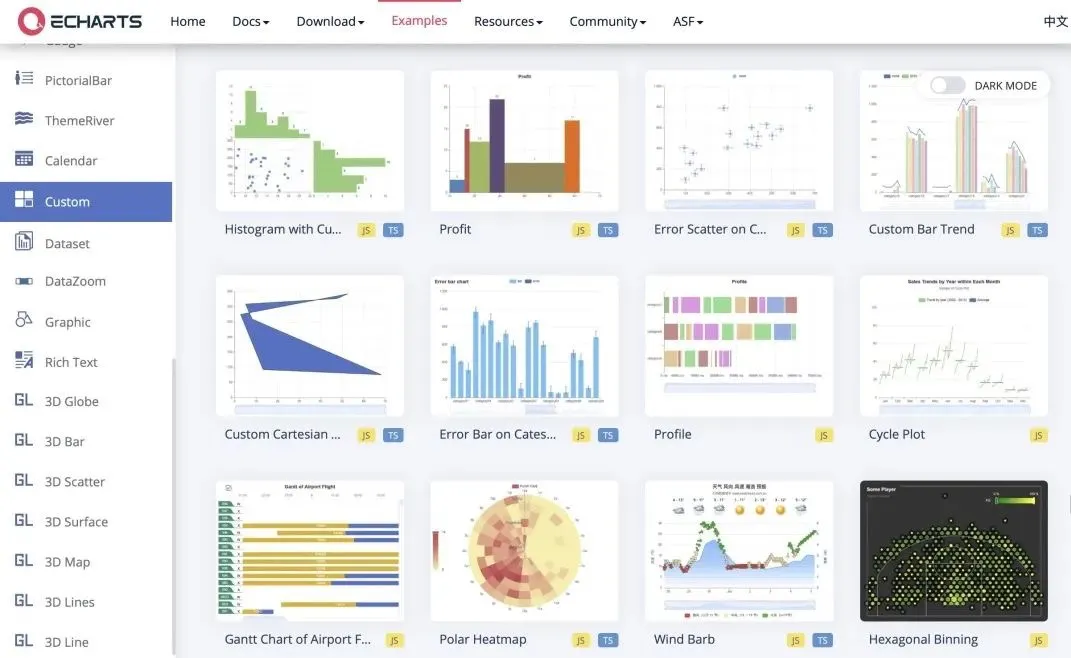
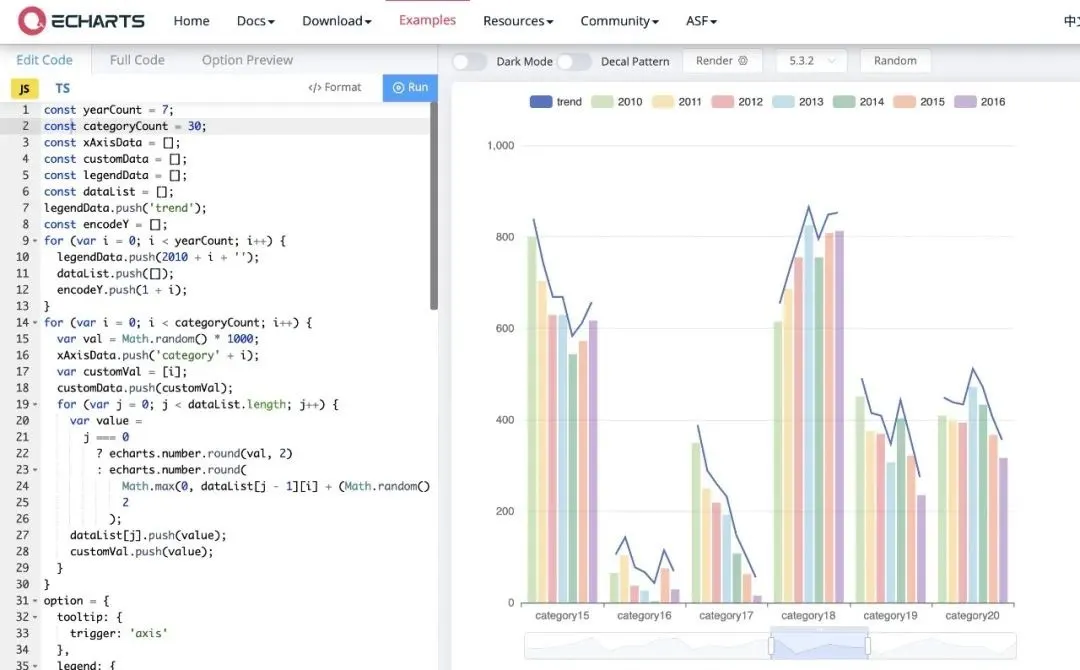
Echarts includes the code needed for creating charts; users simply input data and directives into the template to obtain perfect visual data reports.
FineBI
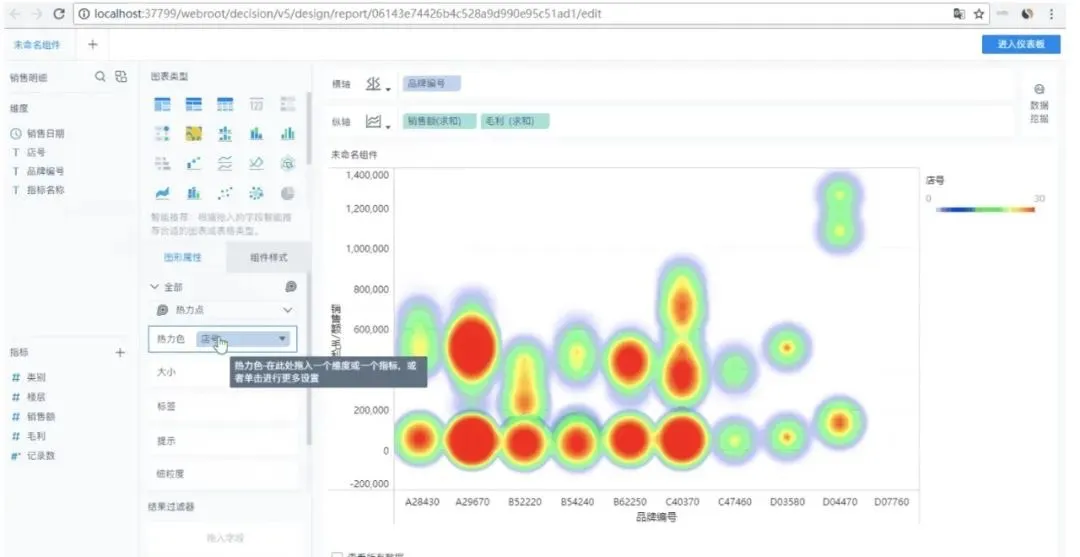
Many students have definitely used this site—it's especially convenient for designing posters. The PPT templates here are also very exquisite, with a wide variety, and most are free.
Easelly
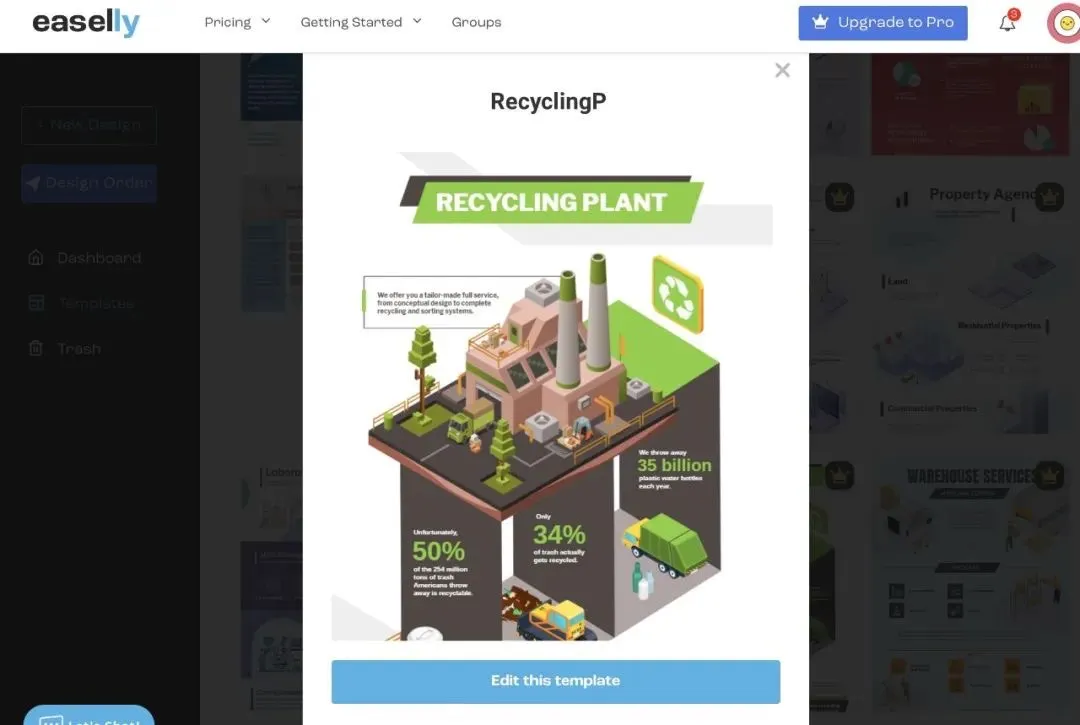
Compared to the above two types of sites that emphasize data-based visual reports, Easelly has broader applicability and is more suitable for students from all disciplines. Moreover, it comes with built-in templates that help users handle visual charts more conveniently.
Creative Presentation Tools
Prezi
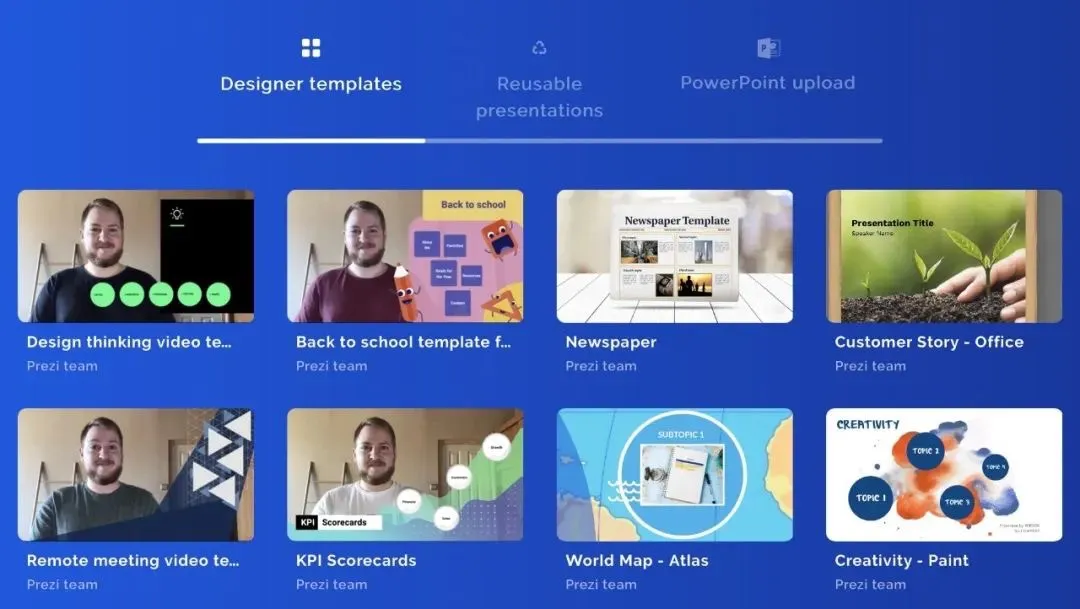
This website should be familiar to students studying abroad; it's presentation software with built-in animation effects, and its non-linear design better highlights content hierarchy. Prezi supports one-click import of PPT, which is very convenient.
Kahoot
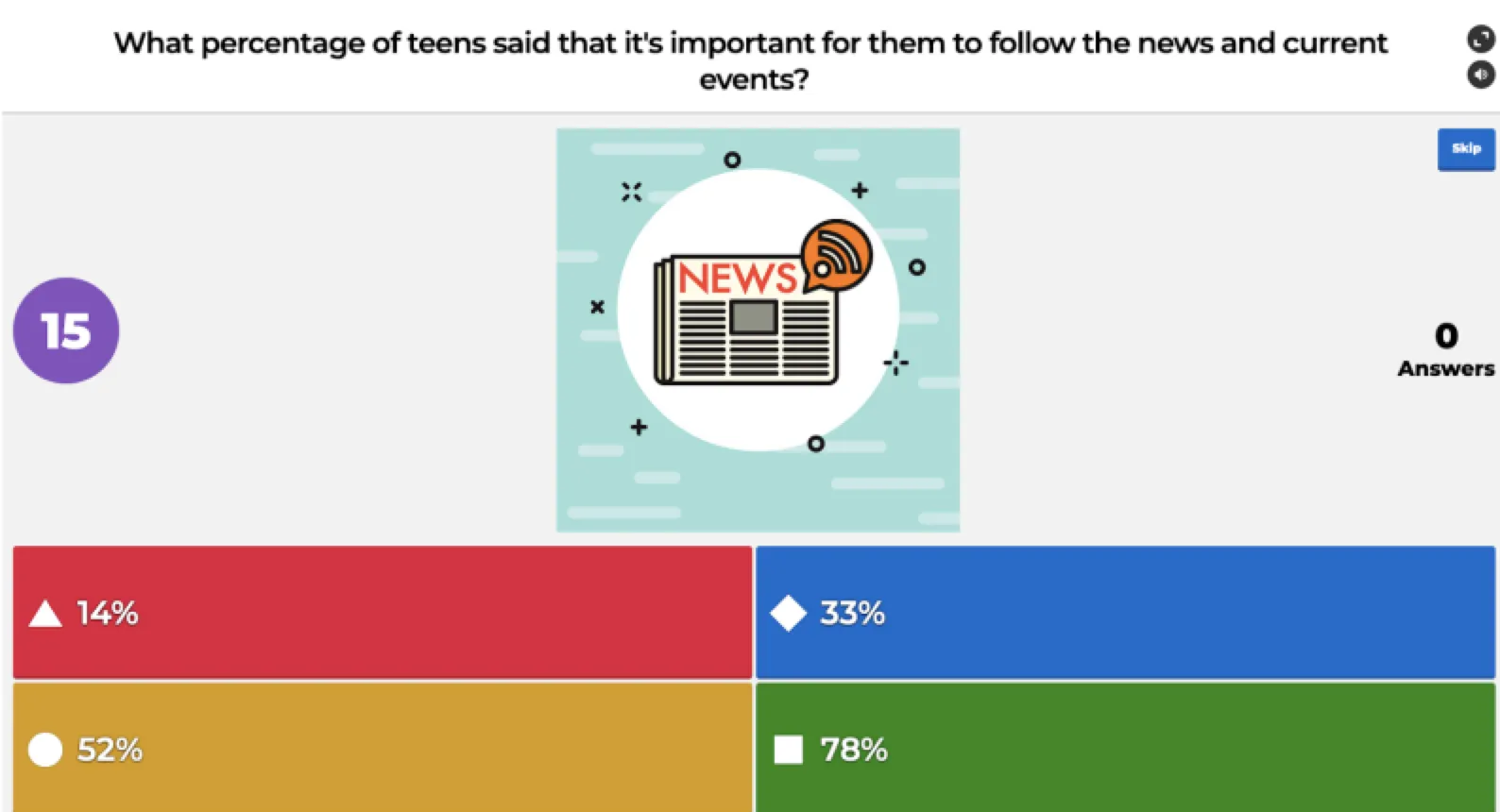
Kahoot is an interactive presentation tool now used very frequently in foreign classrooms. Presenters can create their own Kahoot projects, setting questions and options in multiple-choice format. Each Kahoot project has its own password; participants enter the correct password to join the Q&A. The system displays in real-time the number of participants for each question and the top five players on the leaderboard.
FineBI
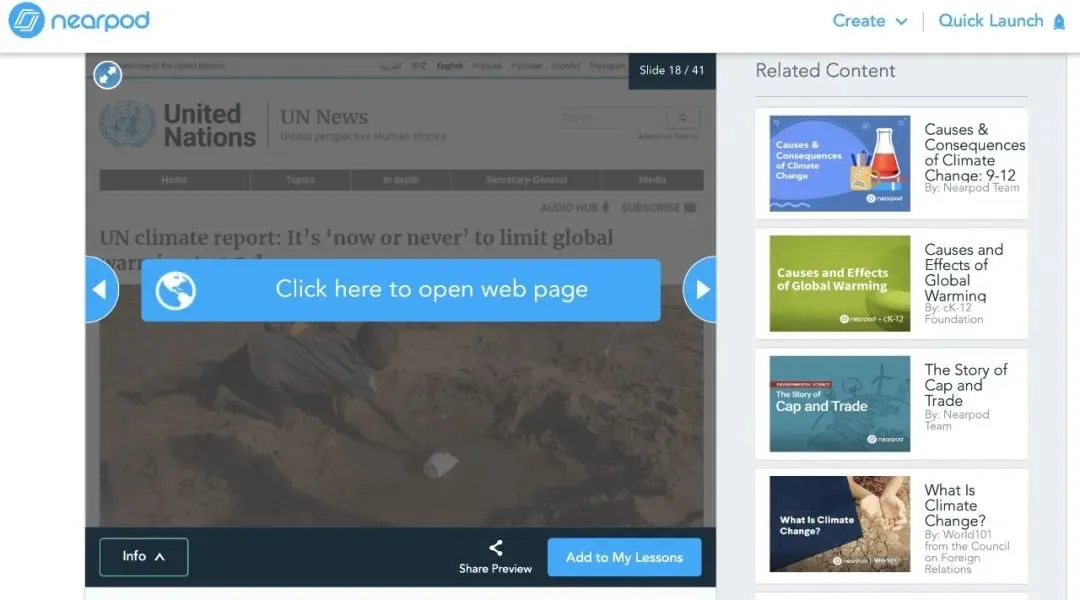
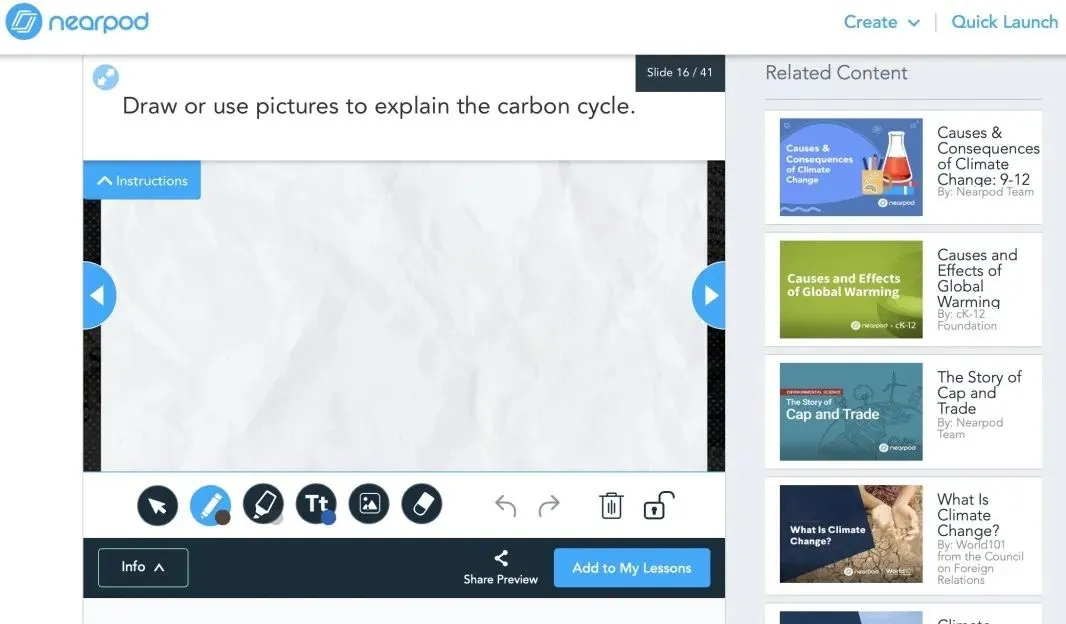
Nearpod is very suitable for students who need to present reports or those studying education. Although it's also in PPT format, its interactivity with the audience is extremely strong. Viewers can not only click on hyperlinks within the PPT on their own but also participate in activities like answering questions, drawing, and voting.
Image Resources
A visually pleasing presentation cannot do without beautiful image resources. We've also compiled some relevant resource sites for your reference.
Inspiration & Creativity
花瓣网 huaban.com
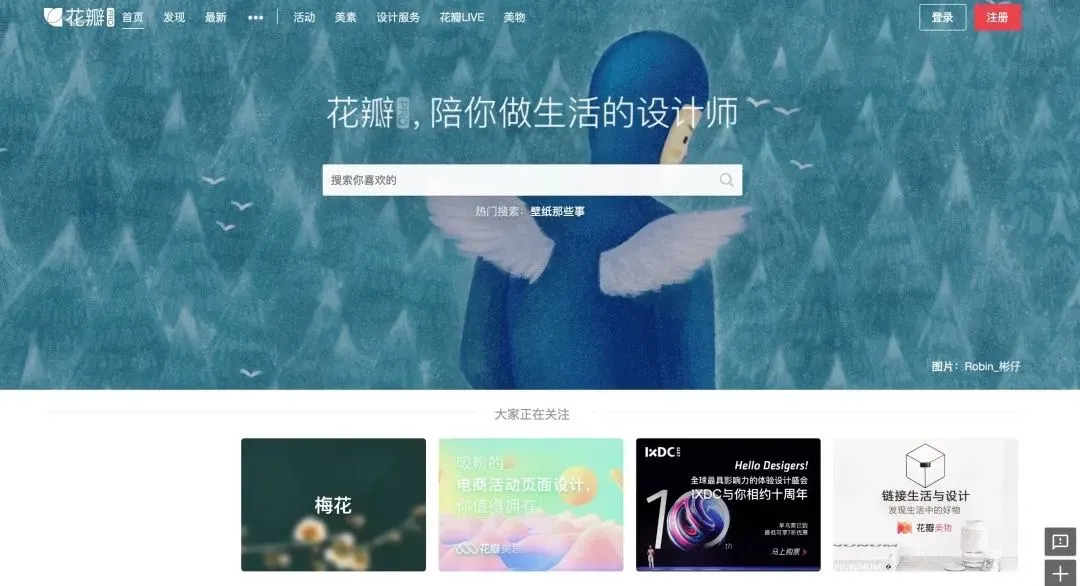
pinterest.com

Image Resources (Free for Commercial Use)
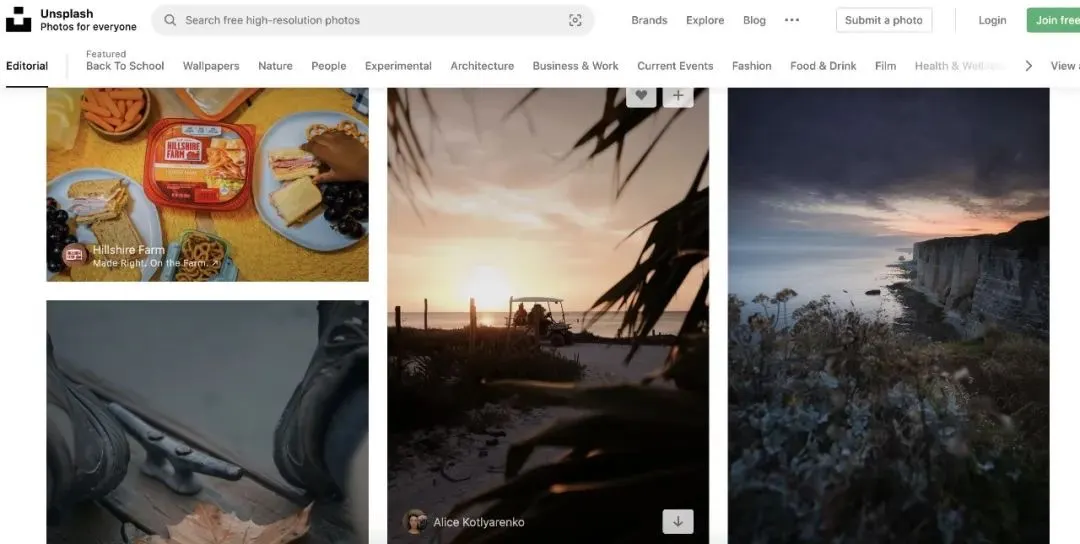
unsplash.com
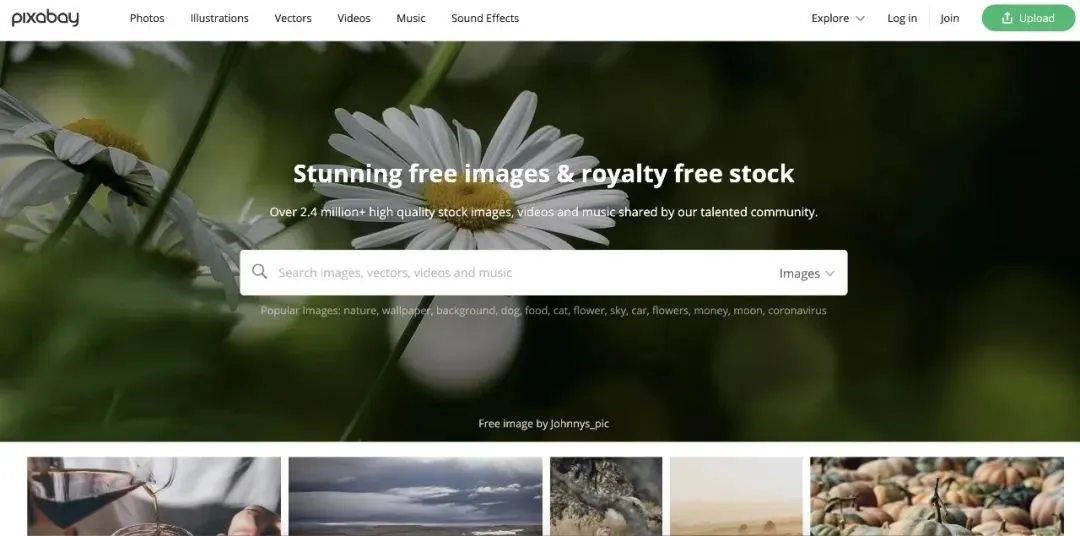
pixabay.com
pexels.com
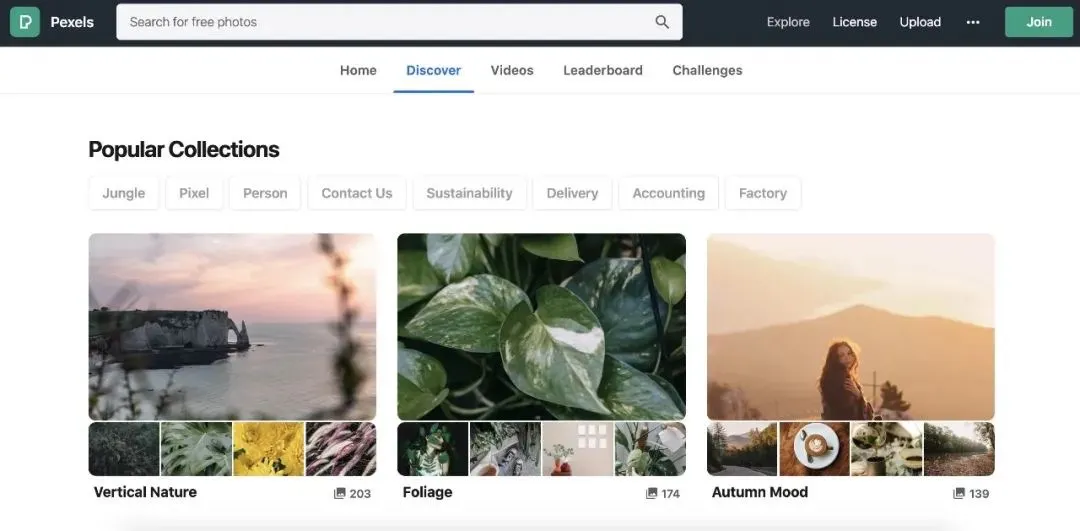
Image Material Resources
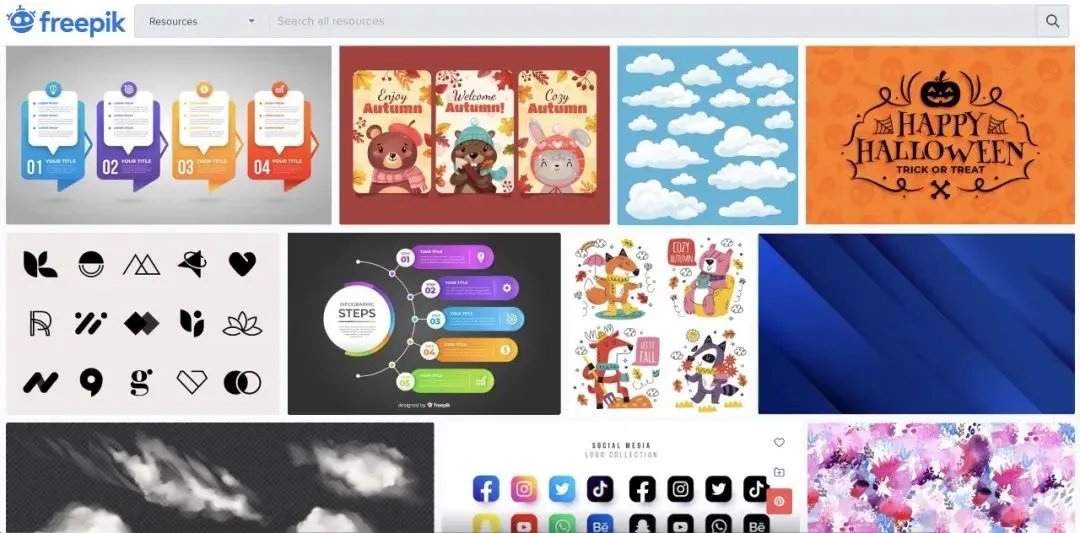
Freepik.com
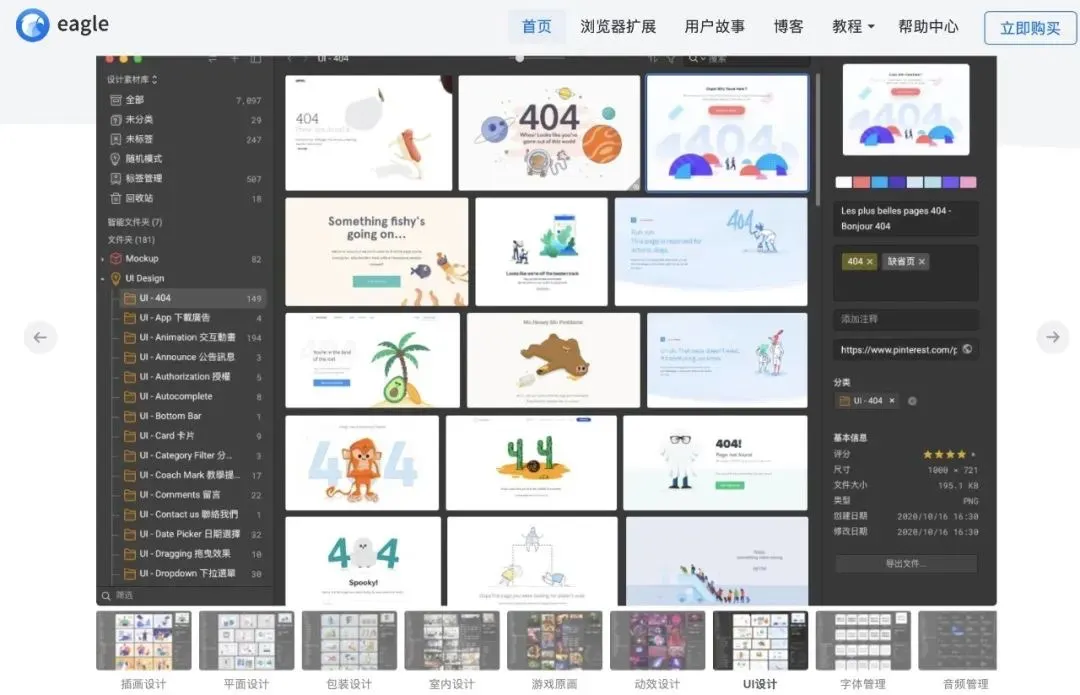
eagle.cool
千图网 58pic.com
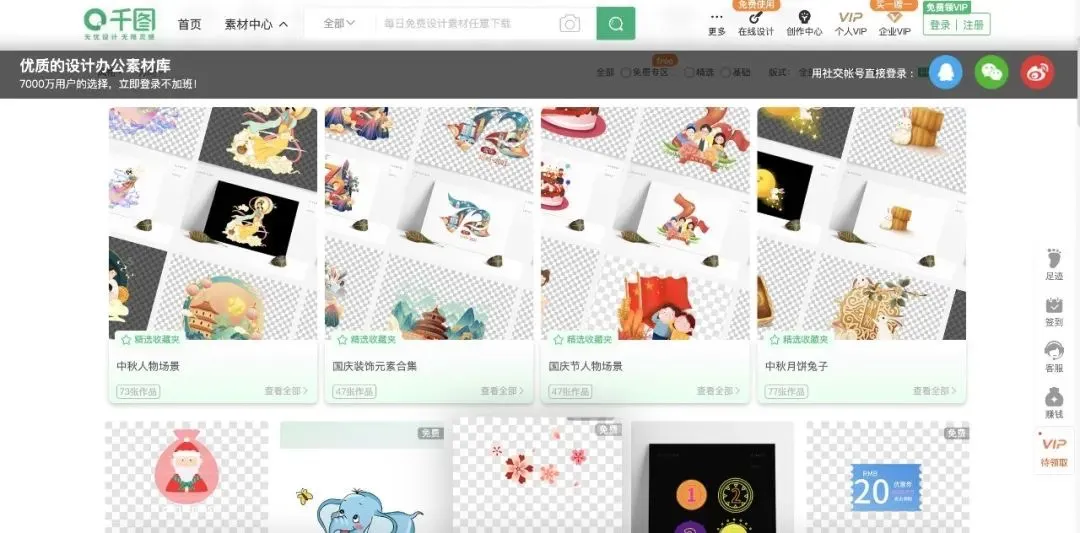
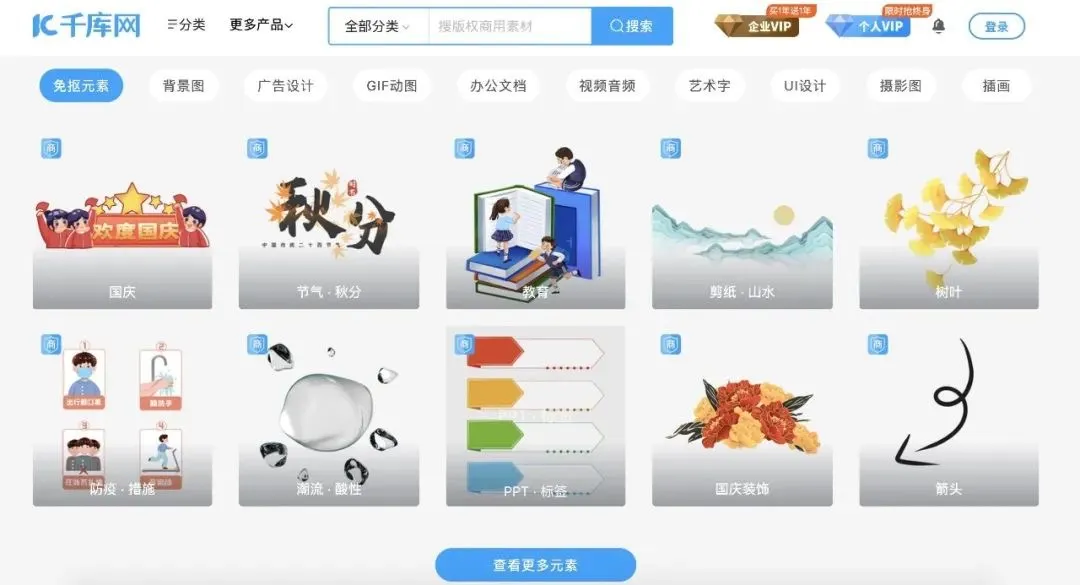
千库网 588ku.com
Color Schemes
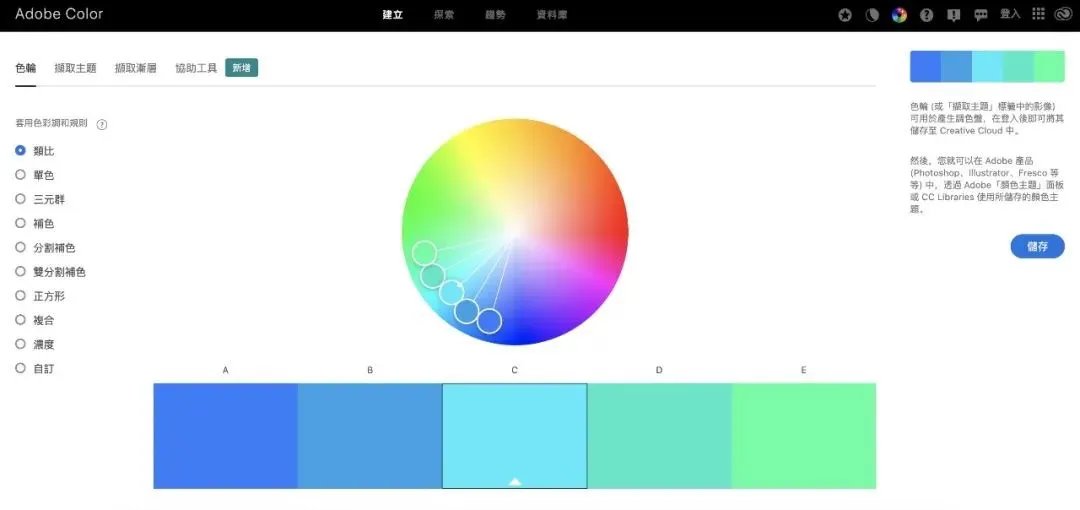
color.adobe.com
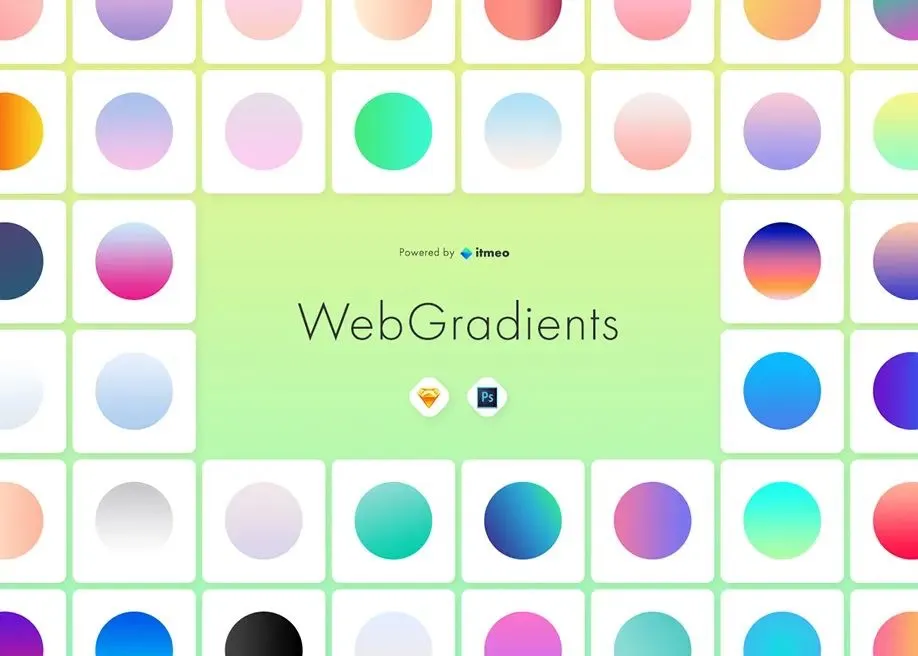
webgradients.com
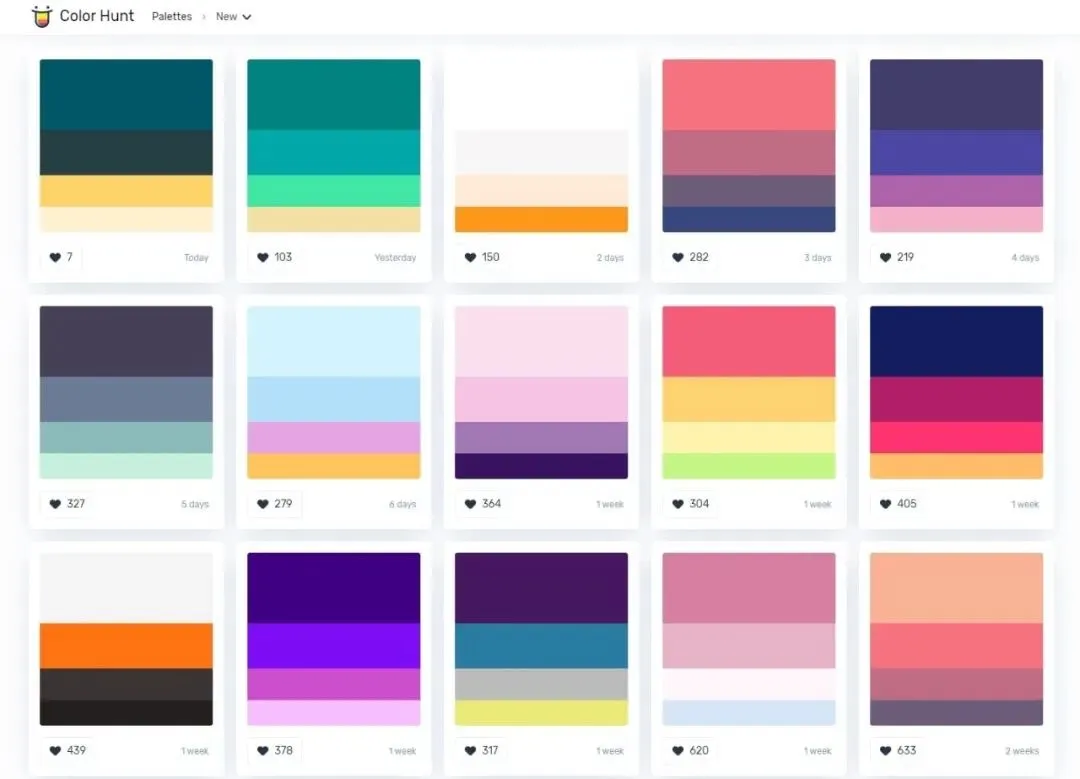
colorhunt.co
PPT Tips You Wish You Knew Sooner
Finally, we'd like to introduce a few lesser-known practical PPT tips that will help you achieve twice the result with half the effort, while also making your presentations more sophisticated. Even beginners can pick them up quickly!
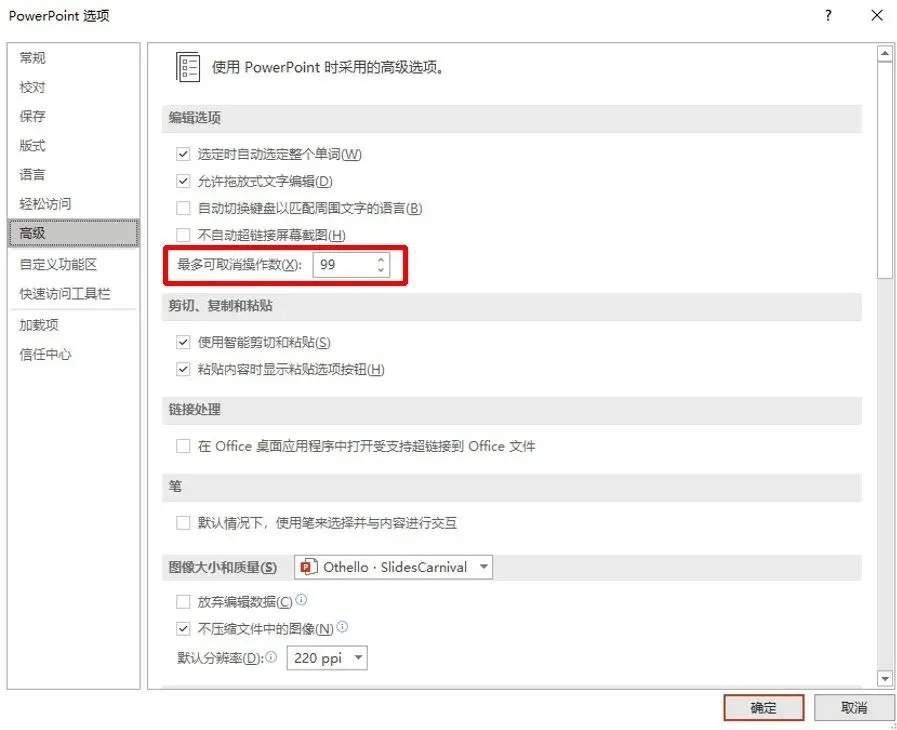
Undo Count
By default, PowerPoint's maximum undo count is only a brief 20 times, far fewer than what you're used to in Word and Excel.
In fact, you can increase the undo count in PowerPoint through appropriate settings. More undo steps mean more chances to revert changes.
Setting method: File - Options - Advanced - Set Maximum Number of Undos
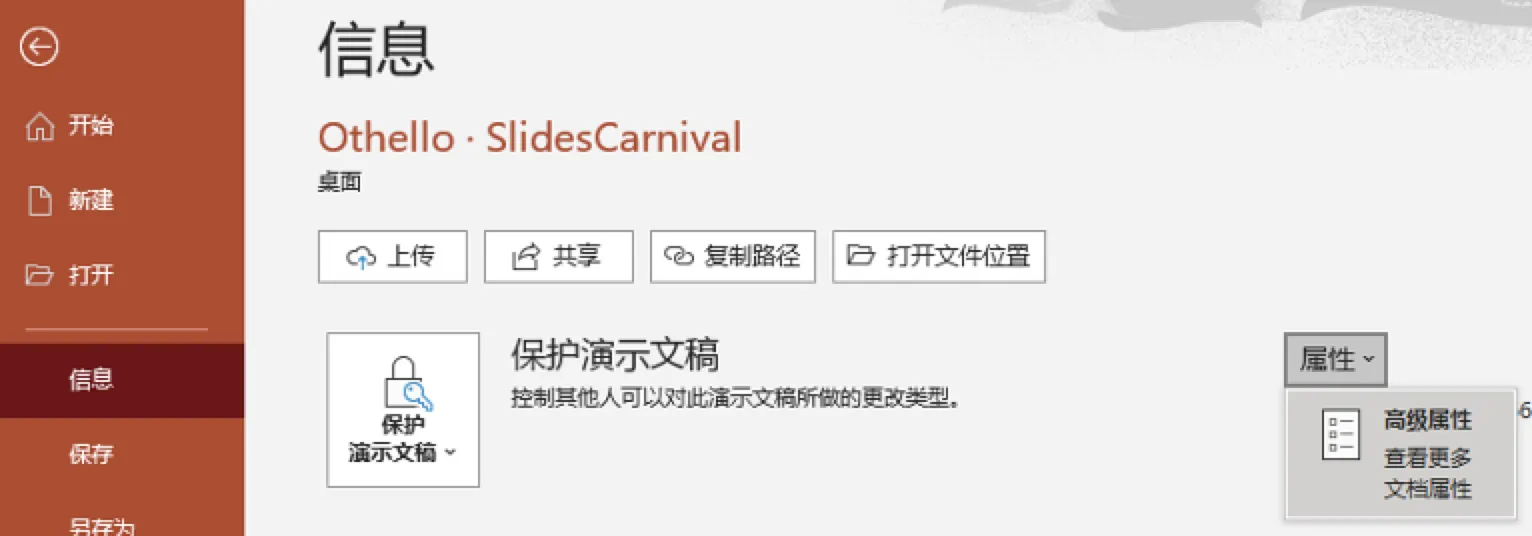
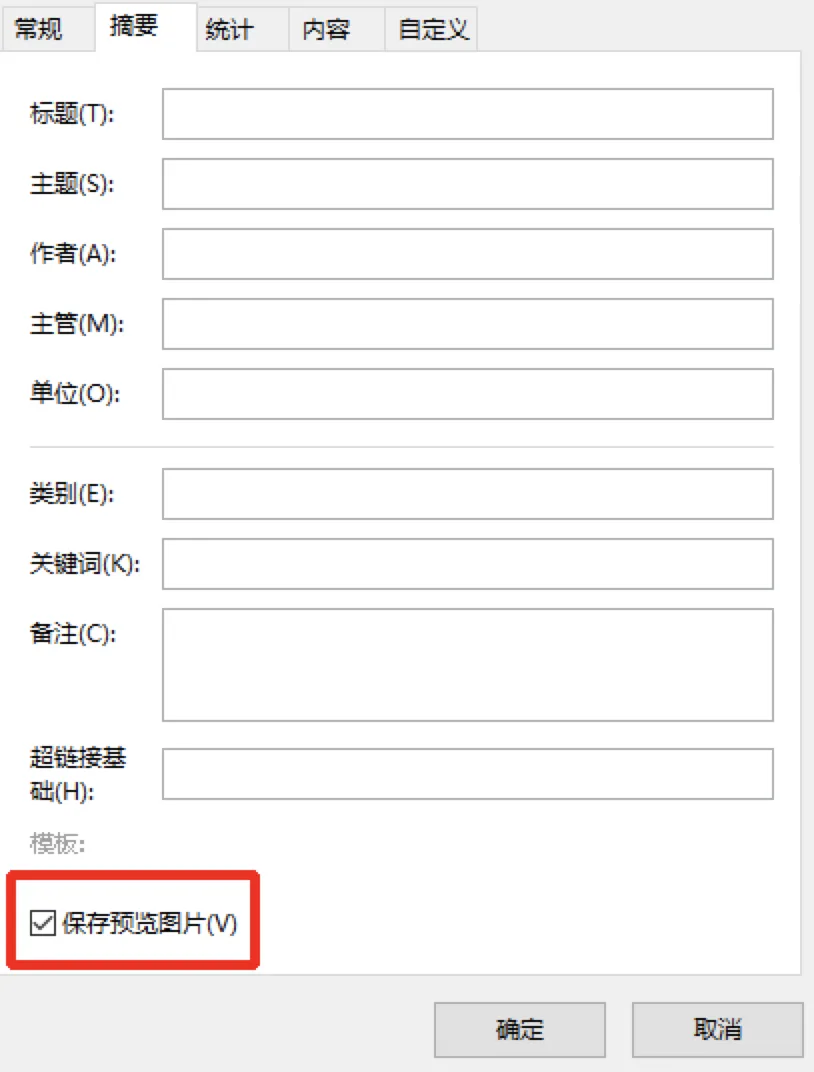
Save Preview Image
With this setting, your PPT cover will no longer be the monotonous PPT file icon but the cover image. More aesthetically pleasing and easier to identify.
Setting method: Info - Properties - Advanced Properties - Summary - Save Preview Picture
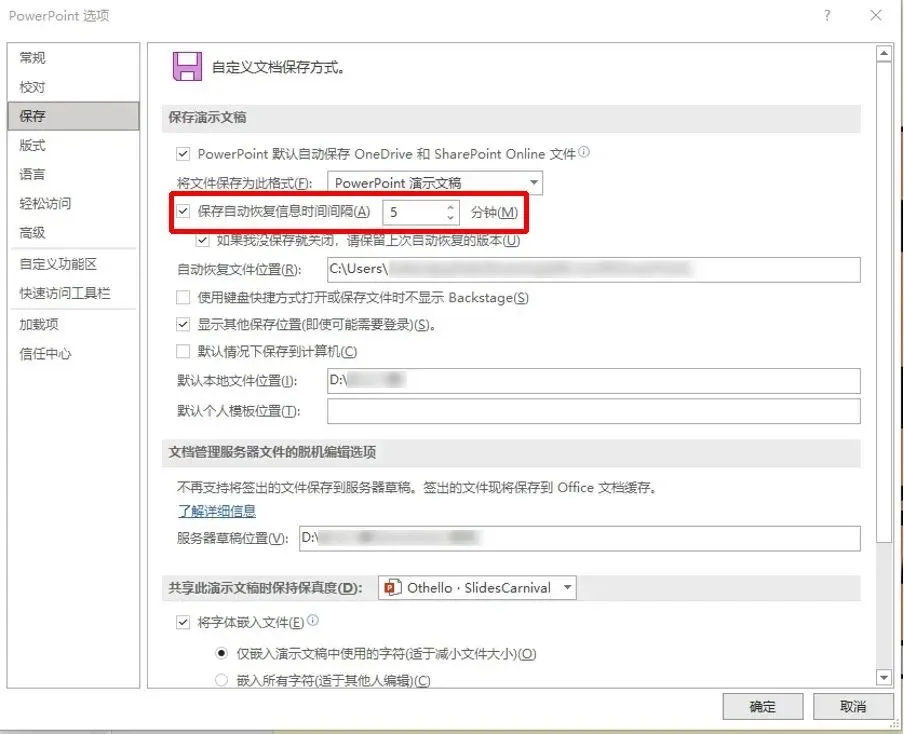
Auto Save
Adjust the auto-save interval to be shorter, so if your computer malfunctions, your hard work on the PPT can be saved in time.
Setting method: File - Options - Save - Modify time interval
Mask Making
When you find a nice picture to use as a PPT background, adding text on top sometimes looks messy and hard to read. At this point, you need to learn how to use a mask.
Original image:

With mask effect:

Making a mask
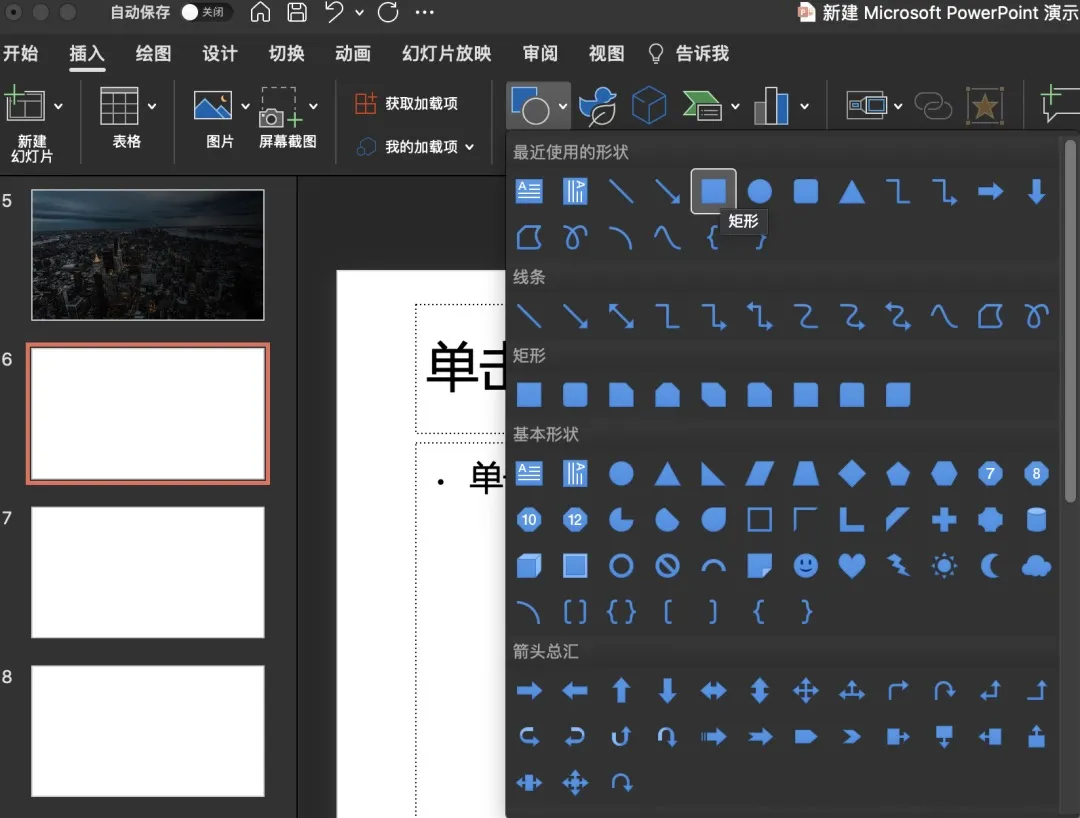
1. Insert a rectangle and place it over your background image.
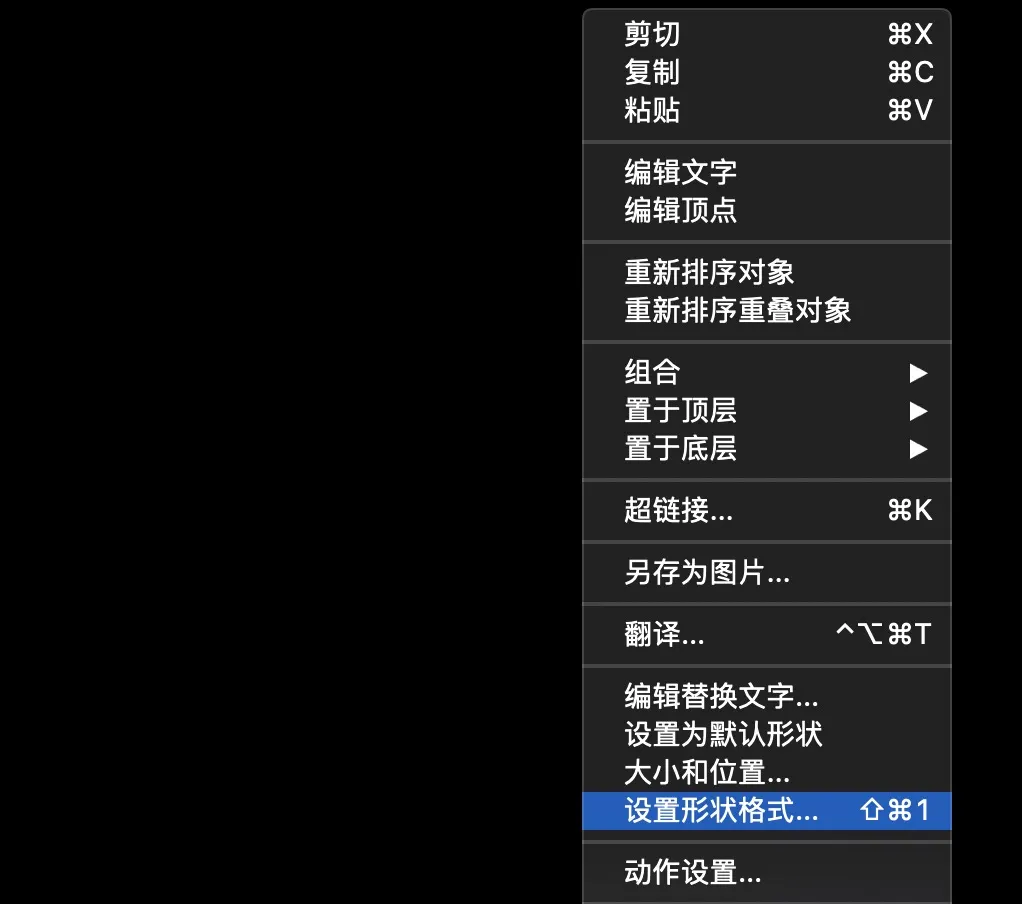
2. Right-click the image and select Format Shape.
3. As needed, choose solid fill or gradient fill, pick black for the color, and adjust transparency to your liking.
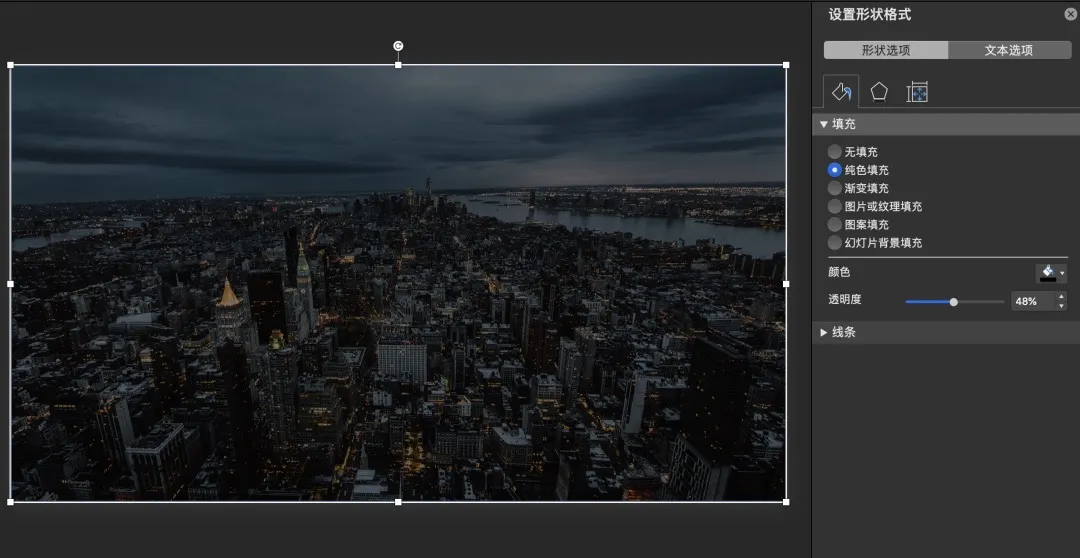
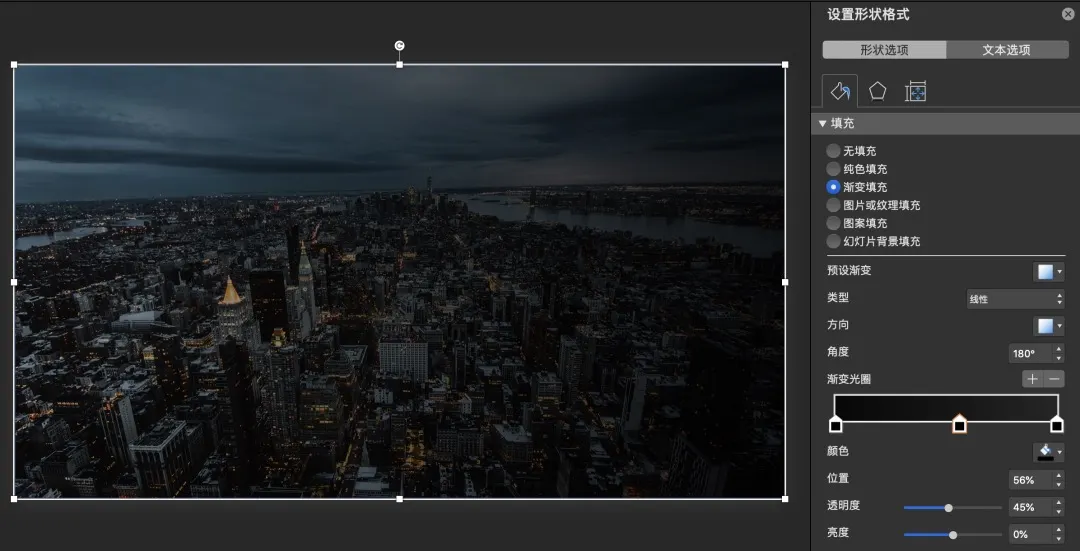
Image Editing
The image editing features in the new version of PowerPoint are incredibly useful, truly a hidden gem—you can transform images into various shapes. Highly recommend trying it out!
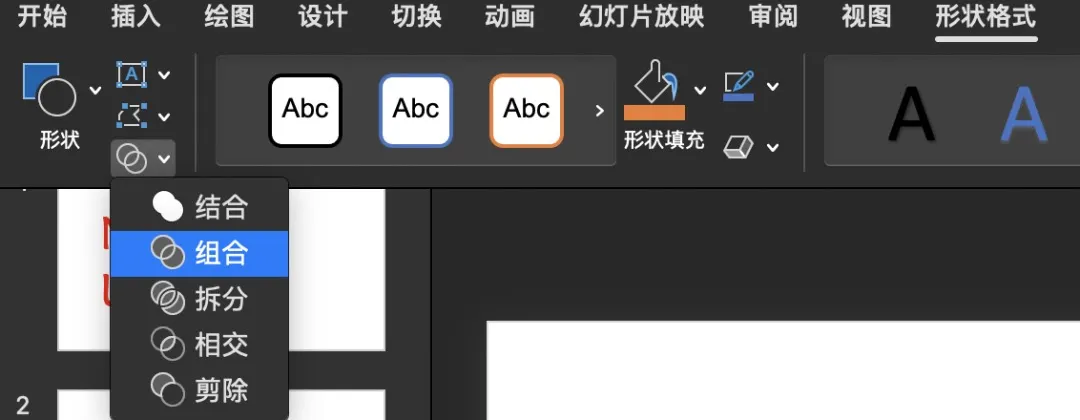
Image editing tutorial
1. Add an image and a shape.

2. Overlap the image and the shape (the parts that need to overlap), then select both objects.

3. Go to Shape Format, and select Intersect.
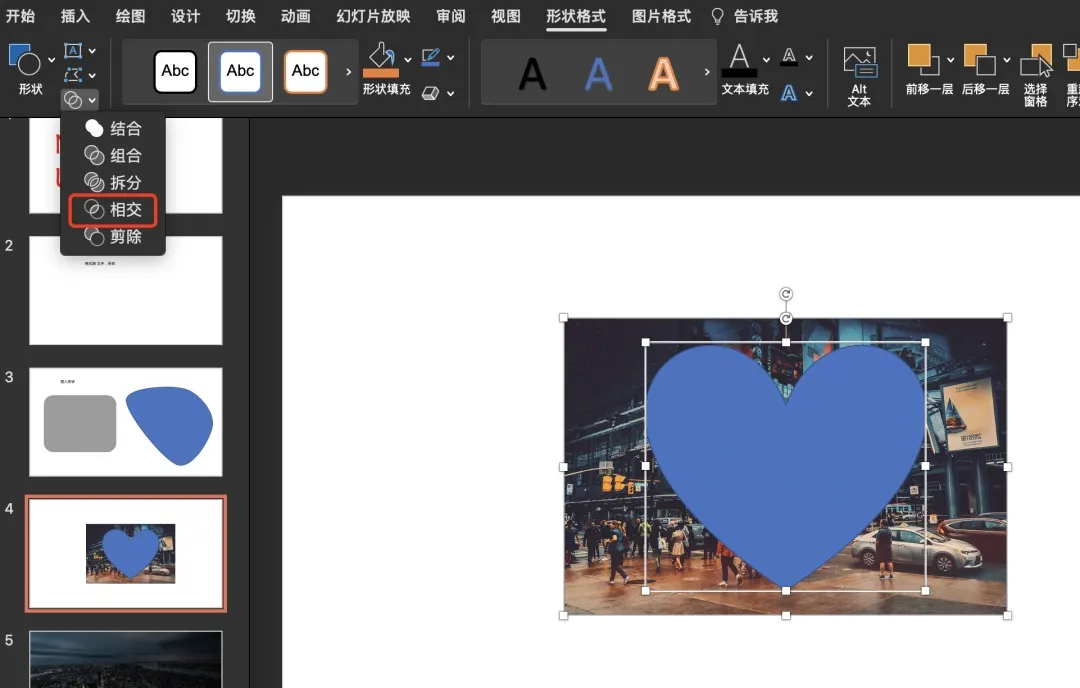
4. A heart-shaped image will appear.

Limited-Time PPT Template Giveaway
Collection of practical PPT material images
and PPT templates from UK, US, and Canadian universities
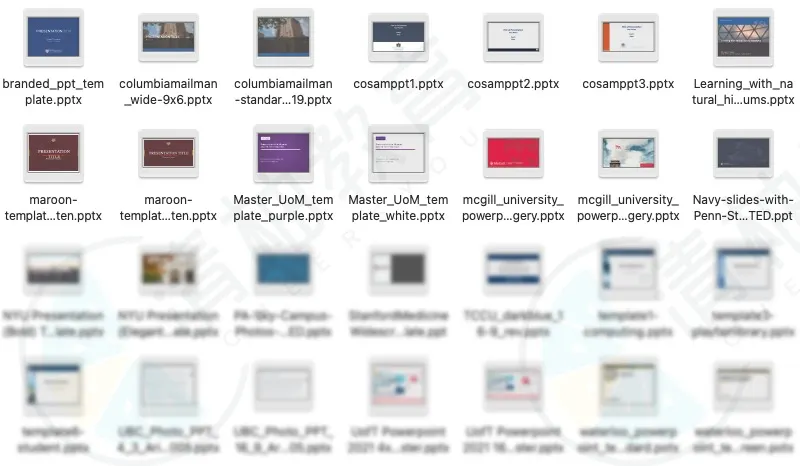
Scan the QR code below
Reply with the keyword "ppt" to our backend
to learn how to get it for free